Meet the Google Sheets widget 👋
14 May
00
min read
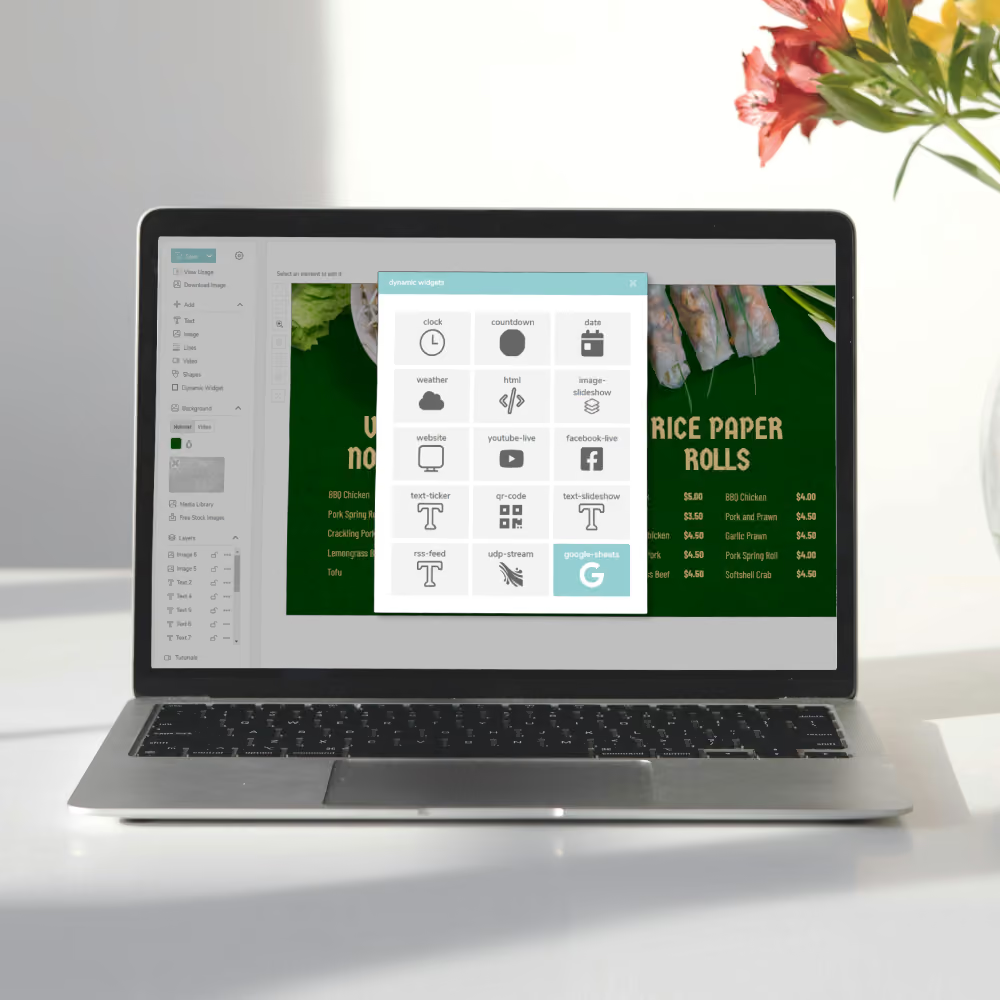

Meet the Google Sheets Widget – a handy addition to Fusion Signage - allowing you to pull dynamic data through to your screens direct from Google Sheets.
A handy and dynamic addition to the Fusion Signage Designer – allowing you to link a Google Sheets page to your content. This means you can update your messages or pricing without having to re-publish your designs or update your screens. A seriously huge time-saver. 😎
How to set it up
There's a tiny bit of set up involved, so here's how to get your virtual ducks in a row. 🦆
More of a read-learner? We've got a step-by-step support article right here for you.
How to use Google Sheets
Now you're all set up – let's see the Google Sheets widget in action. 🙌
What it can do
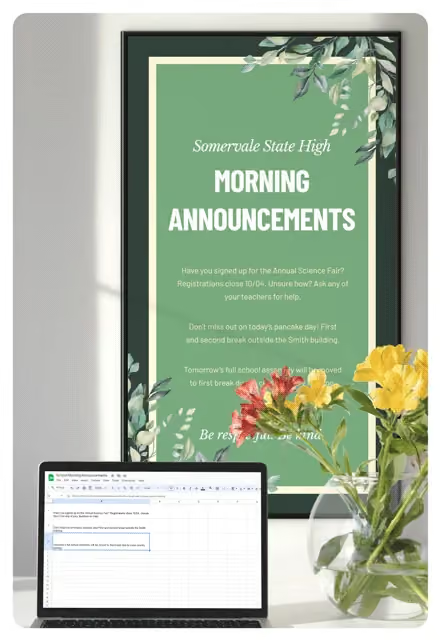
The Google Sheets widget is part of the Designer. It offers customers with an Advanced or Pro Licence the ability to pull dynamic data through to their screens.
Do you have a few designs with the same information in each? Updating them one-by-one is a thing of the past, because now you can use Google Sheets to update them all at once (without having to re-publish your designs!).
Let’s say you have a menu board, but in a few different styles. You can now enter all of your menu items into a Google Sheet (name, price – any information you may need to update), then use the Google Sheets widget in the Designer to link each cell to an area on your screen.
Once linked, you can update the Google Sheet cells to change the information on all designs. Easy-peasy and snappy-snappy! ⚡️
And there's no need to choose between branding and the ease of dynamic data. The Google Sheet widget's text is completely customisable to suit your vibe. 😎
You can also share your Google Sheets page with anybody in your team and allow them access to update specific sections of information without them having to login to the Fusion Signage platform. Your screens will automatically update within 15 minutes – no extra fingers need to be lifted.
Where to find it
1. Go to Design in your Fusion Signage portal
2. Create or edit a Design
3. Click 'Dynamic Widget'
4. Click 'Google Sheets'
5. From there, add in your Google Sheet Configuration details (watch the how-to video here)
6. Then you're free to add and customise your design, cell-by-cell ✨
Let us know if you have any questions about the Google Sheets widget. And as always – tell us what feature you'd like to see next! 💙
The Monthly Sip
Sign up to our newsletter for the latest updates, insights and helpful tips straight to your inbox.
Email*


Looking for something else?
We can’t wait to hear about it. Reach out to our sunshiney support or binge demos on-demand.
.avif)

Become a
Fusion Signage
partner

Our story
We’re an agile team of engineers, dog-lovers and get-stuff-done-ers. Here to make your digital signage feel simple, go powerful and create impact.

<3
Our sunshiney support have an average response time of less than three minutes. <3 that for us.
