Meet the Tableau integration
1 Apr
00
min read
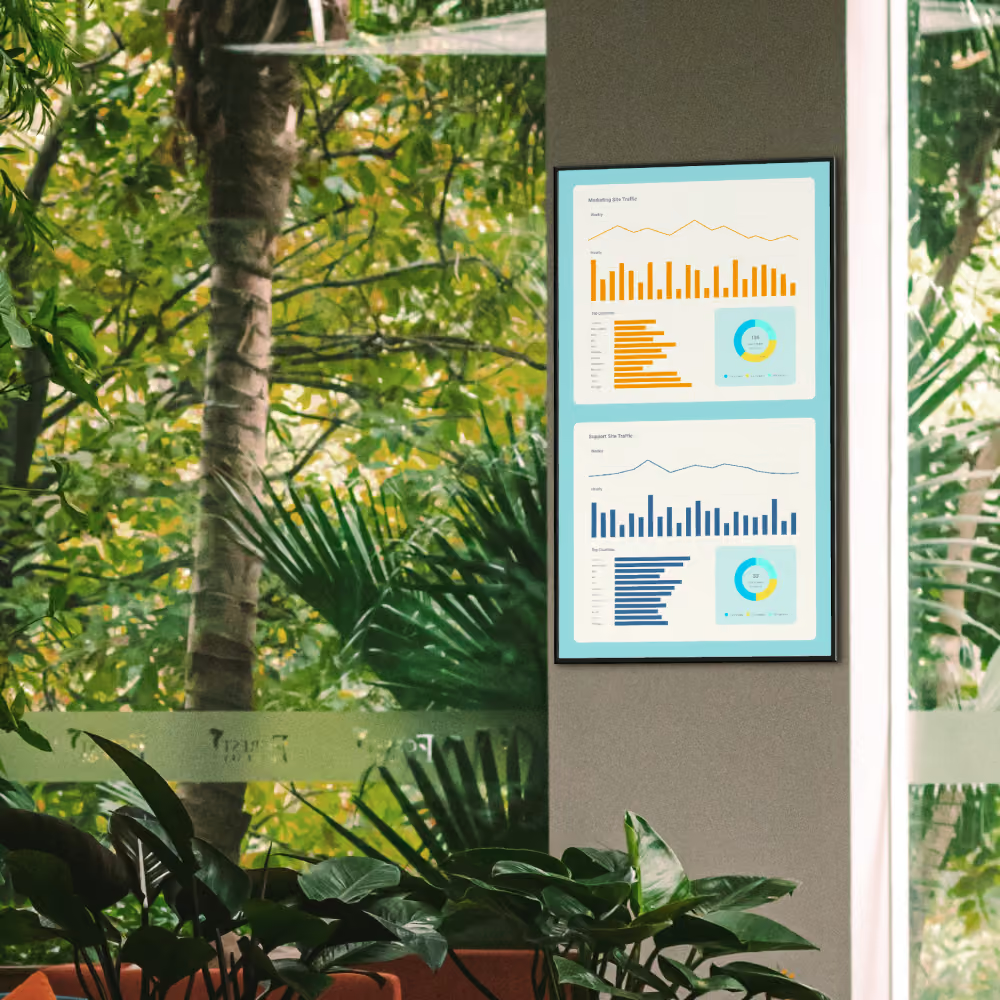

Oh, you thought we were done with new integrations? Think again. We’re keeping the momentum going – meet the Tableau integration!
Oh, you thought we were done with new integrations? Think again. 😏
Fresh off the heels of our Power BI integration, we’re keeping the momentum going. Meet the Tableau integration! ✨
Pro Licence holders have access to this latest feature as of today. 👏
How it works is not much different to our Power BI integration – it simply offers the same dynamic reporting options for those with Tableau accounts. We love it when everyone is included. 💙
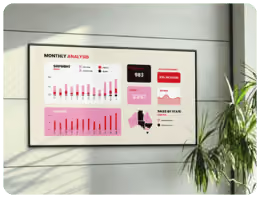
Tableau in a nutshell
- Dynamically pull live Tableau dashboards to display on your digital signage screens.
- Showcase real-time data (not just static snapshots) for up-to-the-minute insights.
- Select specific dashboards or sheets to feature on your screens.
- Manage reports like any media item – add them to playlists and send them to your screens seamlessly! 🙌
Why it's so neat
Adding Tableau reports is easy-peasy through our new integrations page. Pick the exact dashboard or report you want to display and watch it update in real-time.
If your device’s browser supports it, your data will update live on screen. If not – an image version has your back. And if the internet drops out a cached image version refreshes every 20 minutes to keep things running nicely. 🙌
After tailored content? Filter reports for individual screens – ensuring the most relevant data reaches the right people.
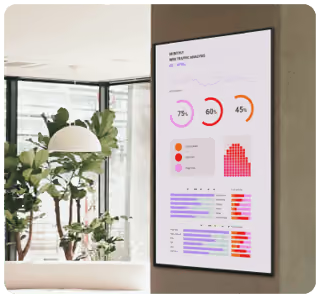
Watch our demo
It's a simple set-up, but let's go through it together anyway. 💙
More of a read-learner? We've got a step-by-step support article right here for you.

What's required?
- A Fusion Signage Pro Licence account.
- A Tableau account with suitable access to the reports.
- Screens with the correct application version installed. See here for more information.
Easy answers to your questions
What licence do I require?
- You need to be a Pro Licence account holder to access the Tableau integration. If you'd like to upgrade, simply get in touch. 👋
How do I filter my reports?
- Once the Tableau integration is set up, you can access the screen metadata via Deploy → screen name → Configure Screen. In here you can select a report or page and choose filters to apply to ensure only the data you want is displayed. Multiple filters can be set up as you need them. 🙌
Is the report live or just a screenshot?
- Your report is live as long as your device browser supports it. If not, then a screenshot will be displayed.
What happens if my screen goes offline or the browser on the device doesn’t support my report?
- Fusion Signage takes a screenshot of the report every 20 minutes as a fall back. This is for situations where your device browser doesn’t support live reporting, or your device loses connectivity. Either way – you're set with content. 😎
There's a lot to be excited about
- Live data – display real-time Tableau reports directly on your screens – no static images in sight. 😎
- Customisable views – select specific pages from your reports and tailor the content to each screen or location.
- Seamless continuity – auto-caching and fallback images ensures your data always stays visible (even if the internet drops out).
Getting set up
- Login to your Tableau account and create a Connected App for Fusion Signage.
- Take note of the Secret ID, Secret Value and Client ID – you’ll need these later.
- Login to your Fusion Signage account and go to Deploy. Check your screens have an appropriate application version installed.
- Go to Settings. You’ll see our brand new Integrations tab – click that. Next to Tableau, select ‘Configure integration'.
- Remember those details you took note of earlier? Use those to fill in the pop-up, linking your Tableau account with Fusion Signage.
- Once connected, go to the Manage page and find the folder you would like to add a report to. Click ‘Add’, then click ‘Tableau’.
- Select the report and choose the page within that report you would like to display.
- You’ll notice that the report is added to your folder. Nice – nailing it.
- Create a new playlist or edit an existing one. Click ‘Add’ then ‘Media’ to find your new report.
- Set up any tagging or scheduling required.
- Publish to a screen!
Remember – this is a Pro Licence feature only. If you'd like to enquire about upgrading to Pro, send us an email and we'll sort it out!
The Monthly Sip
Sign up to our newsletter for the latest updates, insights and helpful tips straight to your inbox.
Email*


Looking for something else?
We can’t wait to hear about it. Reach out to our sunshiney support or binge demos on-demand.
.avif)

Become a
Fusion Signage
partner

Our story
We’re an agile team of engineers, dog-lovers and get-stuff-done-ers. Here to make your digital signage feel simple, go powerful and create impact.

<3
Our sunshiney support have an average response time of less than three minutes. <3 that for us.
