We were recently featured in Inside Small Business, in a piece that takes a look at the story...
Our Google Sheets integration has levelled up again. Last time it was images and this time, it’s metadata.
Customers using Google Sheets for multiple stores were asking if there was a way to limit the number of designs they had to create. The cell locations were the same for each sheet, but the values and data were changing. Basically – same looking design, but different names or prices or messages for each location.
With every different Google Sheet, you needed a different design to deploy to each screen. So, now we have metadata to help make your life easier. ✨
Add Google Sheets metadata to your screens
Watch our quick setup demo below.
More of a read-learner? We've got a step-by-step support article right here for you.
Why metadata is so helpful
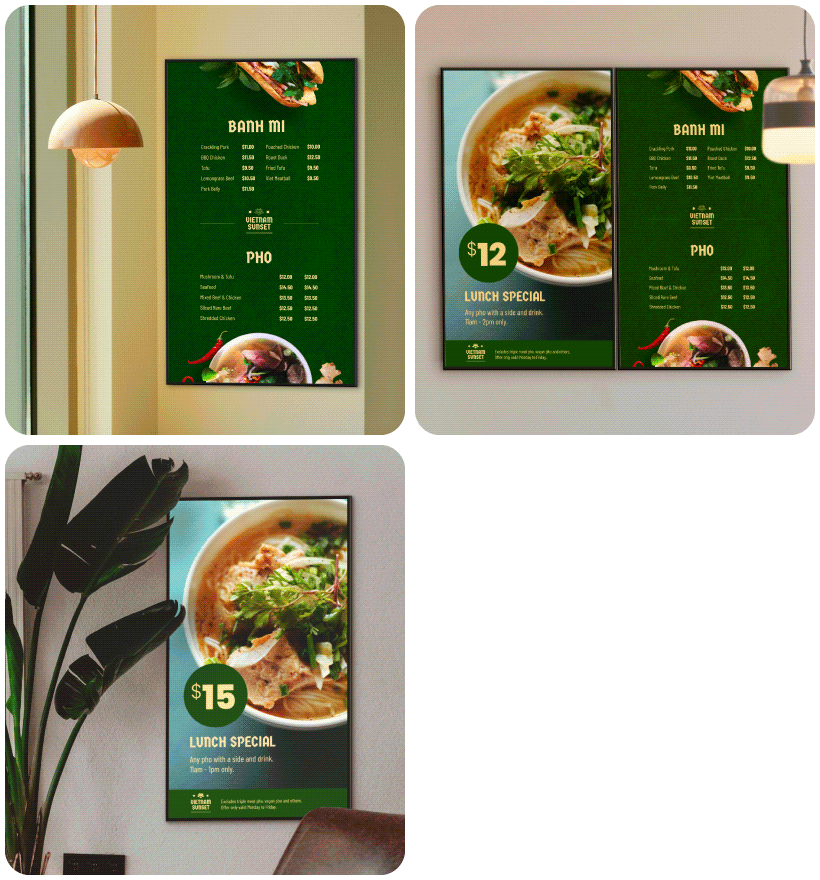 Before now, businesses with multiple locations (or juggling a stack of variations for the same menu board or product list) had one continuous task. Every Google Sheet needed its own matching design inside Fusion Signage. Same layout, same cells – just different data. It meant duplicating designs over and over, renaming them, sorting them into different playlists, managing separate updates – basically living in 'save as' purgatory.
So, we're ditching the duplicates.
With metadata, Fusion Signage can dynamically link your Google Sheet tab names to your screens. One design. One playlist. One source of truth. You can have 5, 50 or 100 tabs in one Google Sheet (think: Menu 1, Menu 2, Brisbane, Perth, South Coast HQ), and each screen will pull the tab’s data automatically by matching the tab name in each screen's metadata setting.
Update a price? Change a name? Fix a typo? You do it once in the Google Sheet and the relevant screen will update. How easy and nice is that?
 What's required?
- An Advanced or Pro Licence to access the Google Sheets widget within our Designer.
- Your design already linked to a Google Sheet. Click here if you need help with this.
-
The same cell structure across all sheets (same rows and columns for menus, prices, and so on).
Step-by-step for you
Our demo (just above) is ready to take you through the set up, or you can visit our Support Centre for some extra, written help.
Need a refresh on how the Google Sheets widget works its magic? ✨
And as always – tell us what feature you'd like to see next!

Add a little something extra to your month 💌
The Monthly Catch-Up
A monthly email from us, to you
(But only if you want it). Sign up below.